Creating a Report
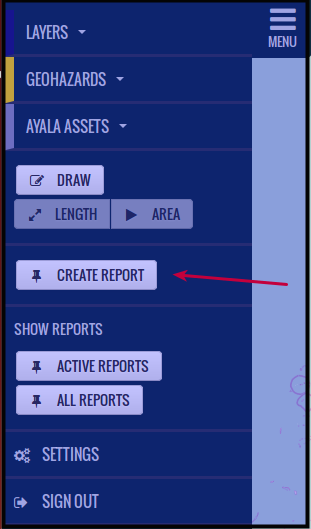
Click Create Report
Click on the map the location you want to report. You will see a form that will pop out see image below.
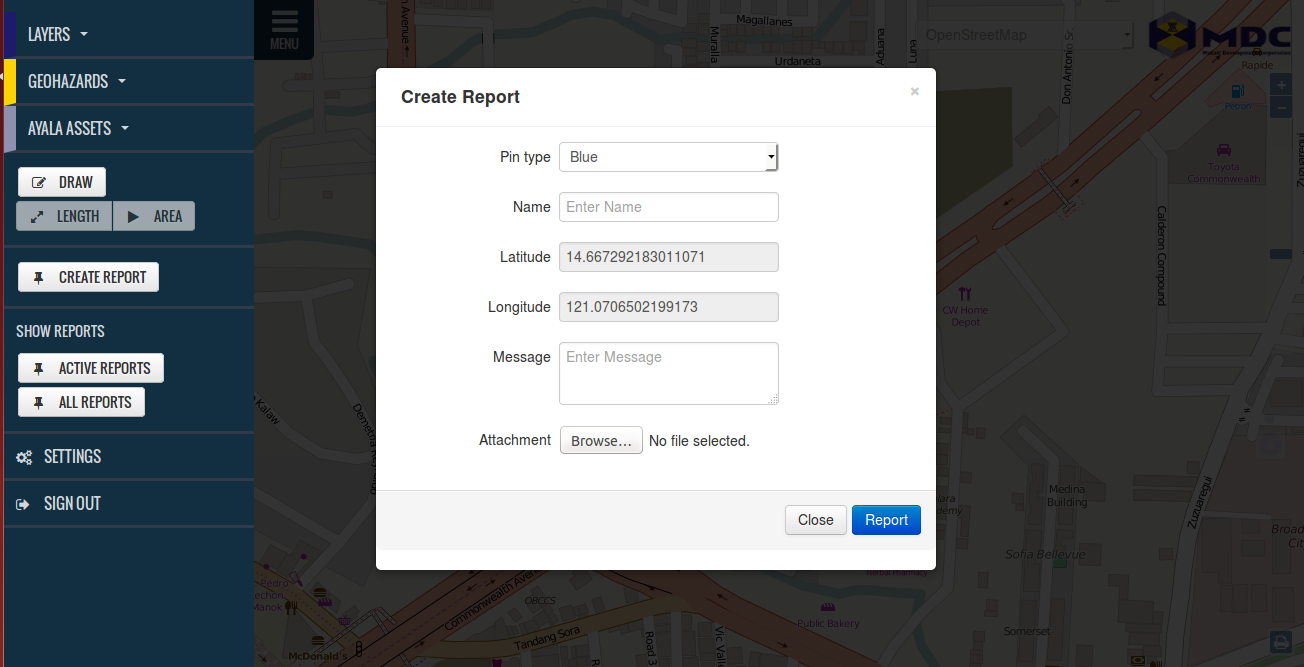
Fill out the form, choose the Pin Type, enter name of the report on Name, Latitude and Longitude are all filled out with the coordinates of the location you have clicked, on the map earlier at step 2, put in the Message you want to put on the report and if you want you can also Attach a file regarding the report using the Browse button.
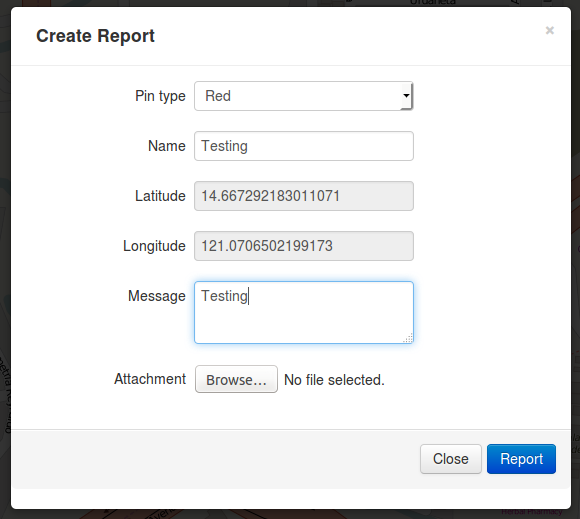
Click Report to save the report.
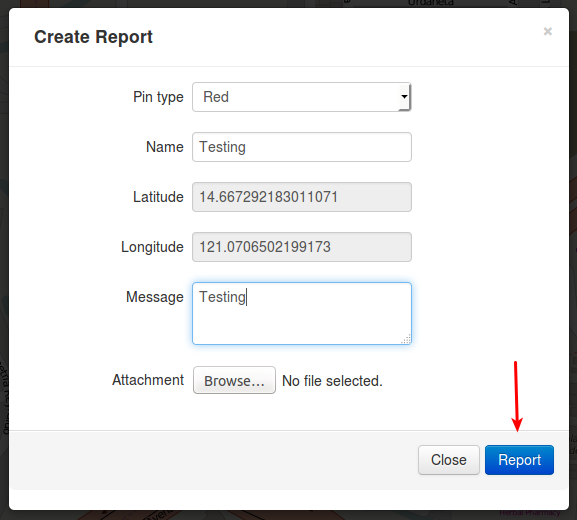
NOTE: You can also create a report by going to Settings => Reports => Click Add New. Same steps as number 3 above, yet here you will need to input the latitude and longitude coordinates manually.
Archiving Reports
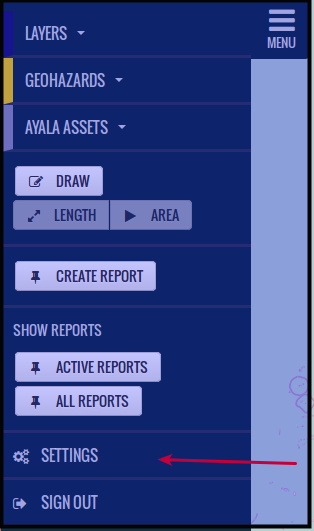
Click Settings
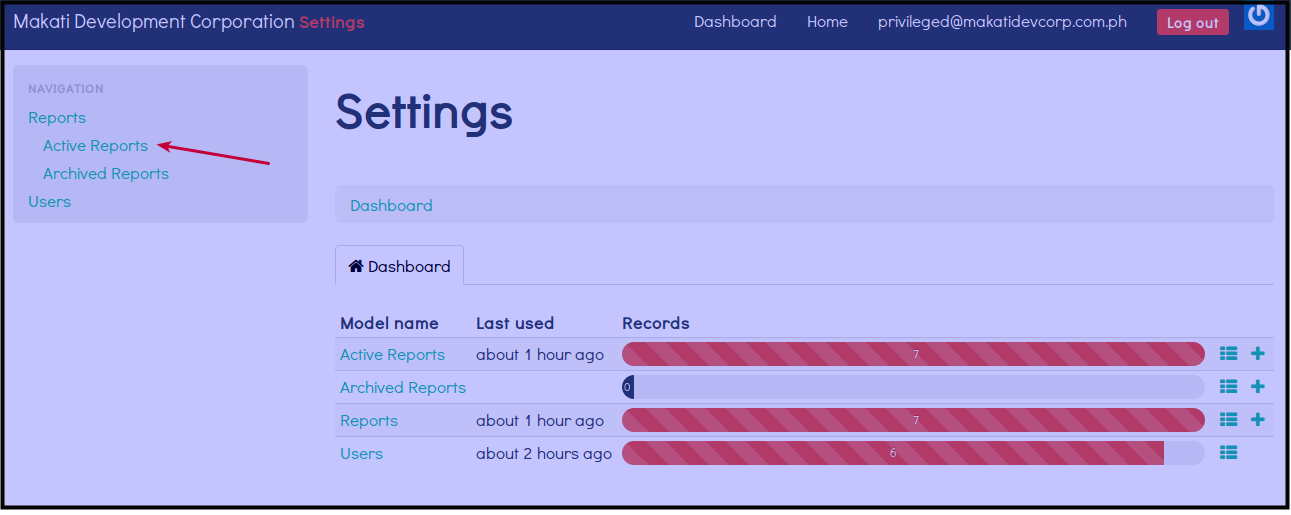
Click Active Reports
Click Pencil Icon beside the report you want to achrive.
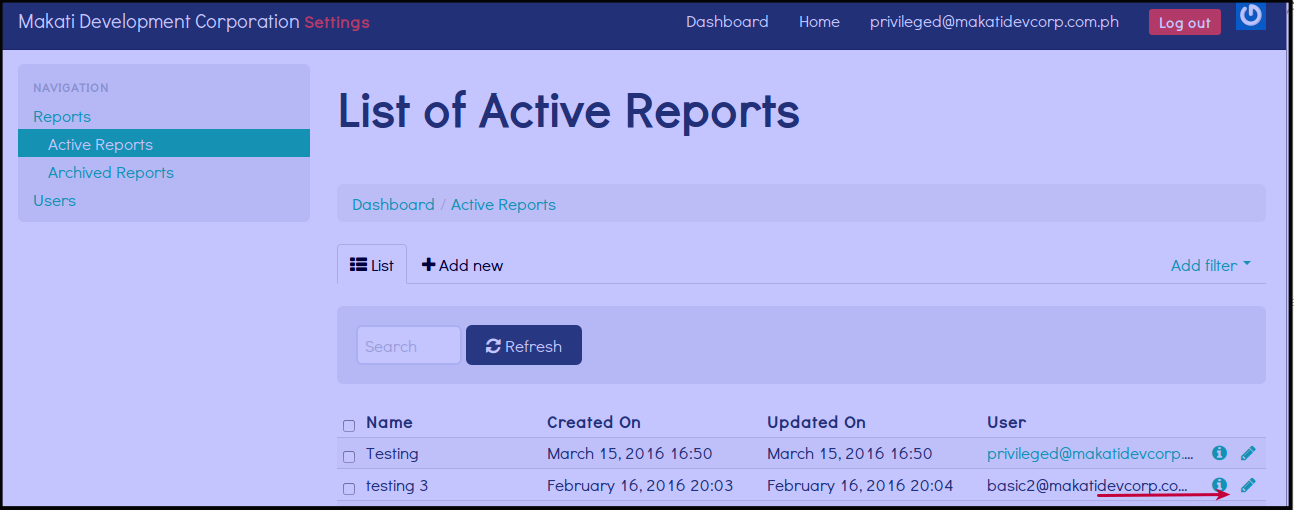
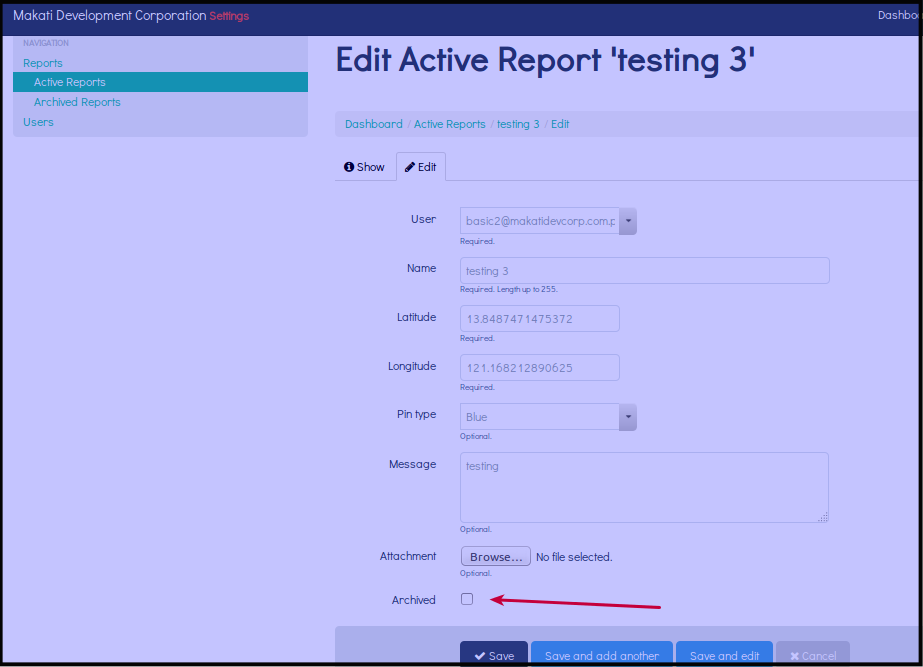
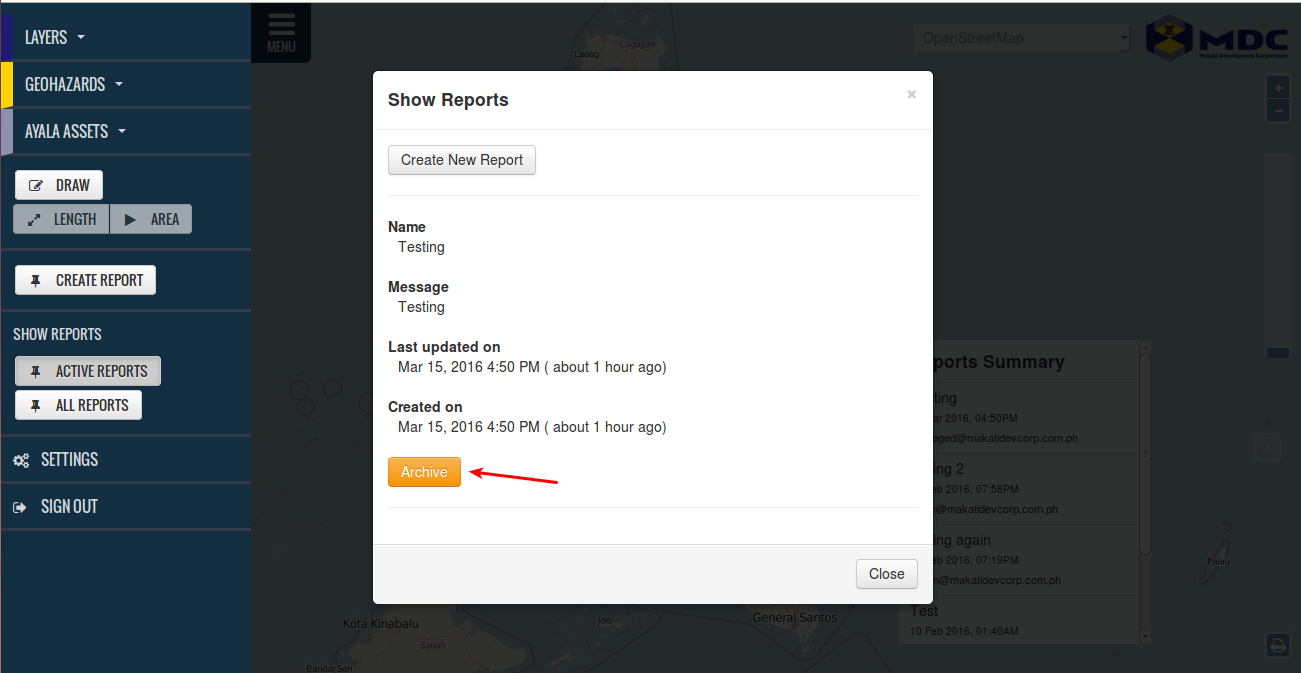
Click Archive, to achrive the report.
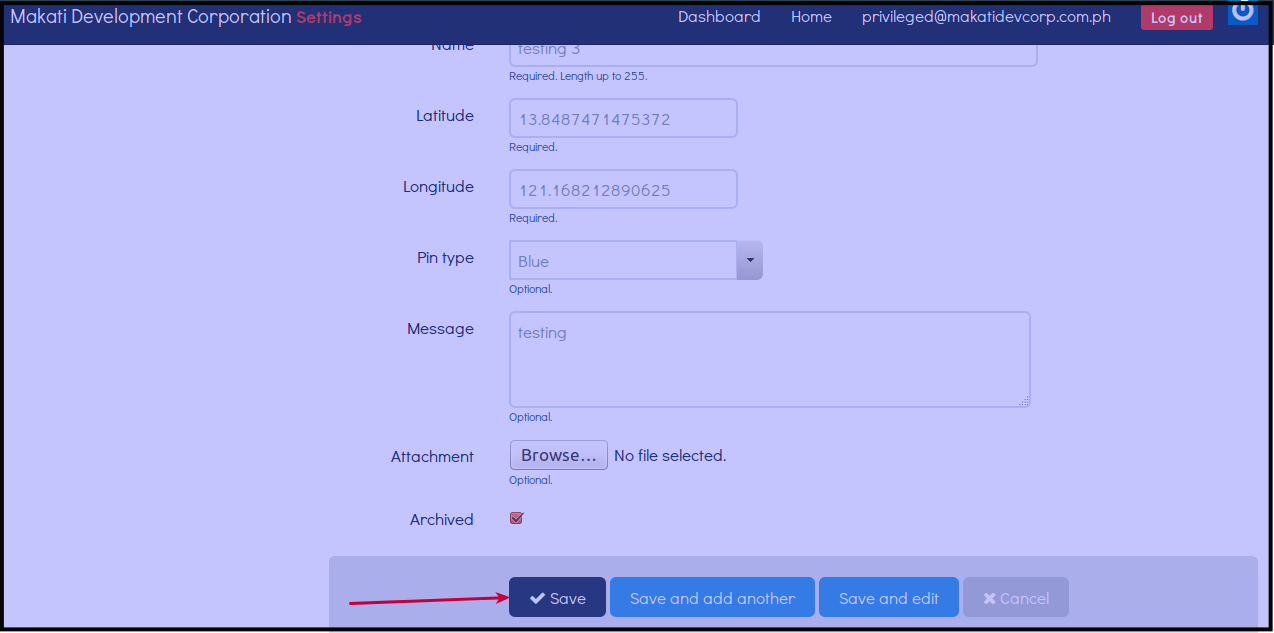
Click Save, to save changes.
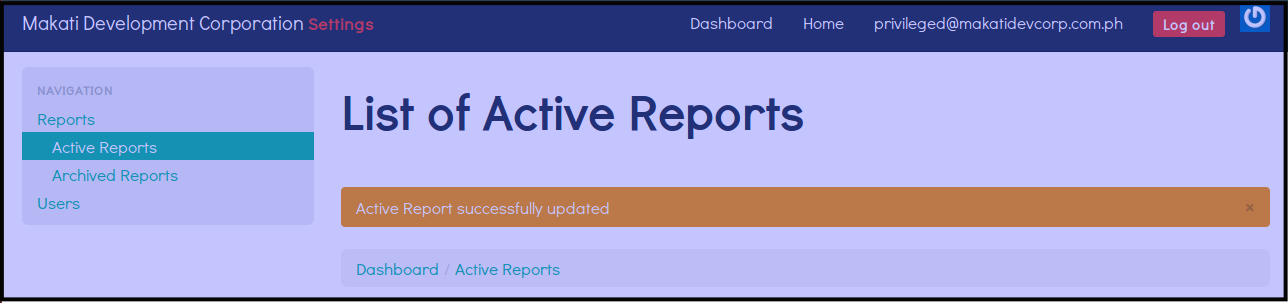
The other way to achrive report is to view the report first then click the achrive button. Please see Viewing A Report for reference.
View All Reports
There are 2 ways on how you can view all reports.
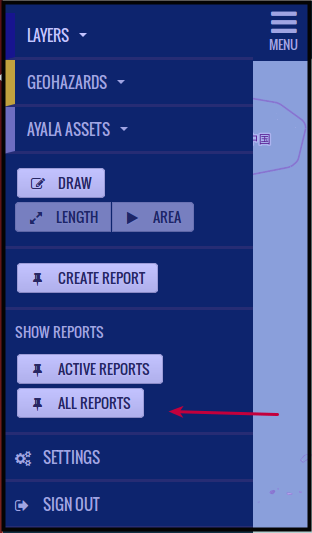
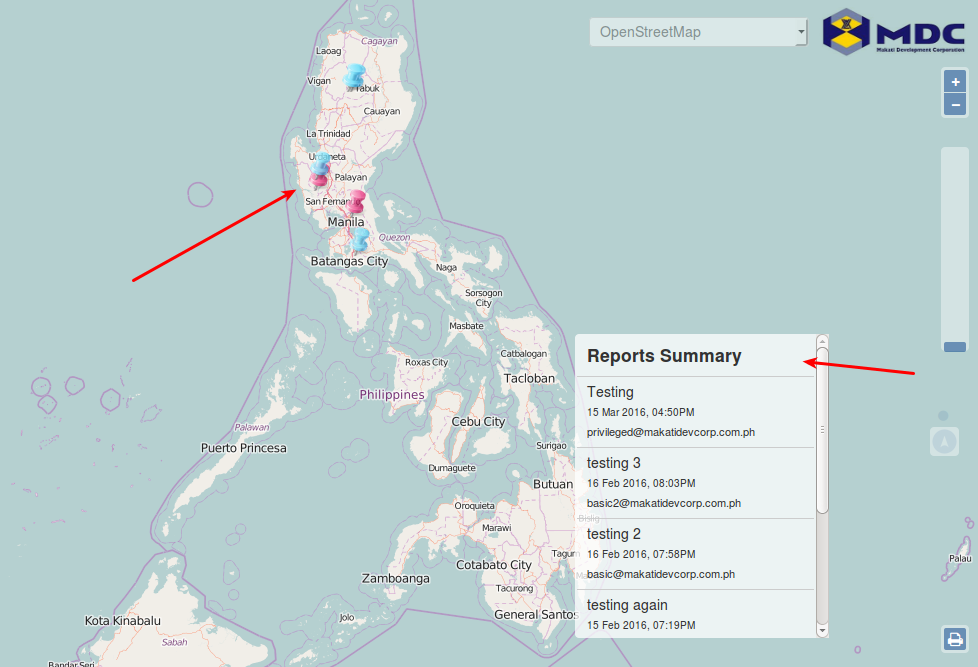
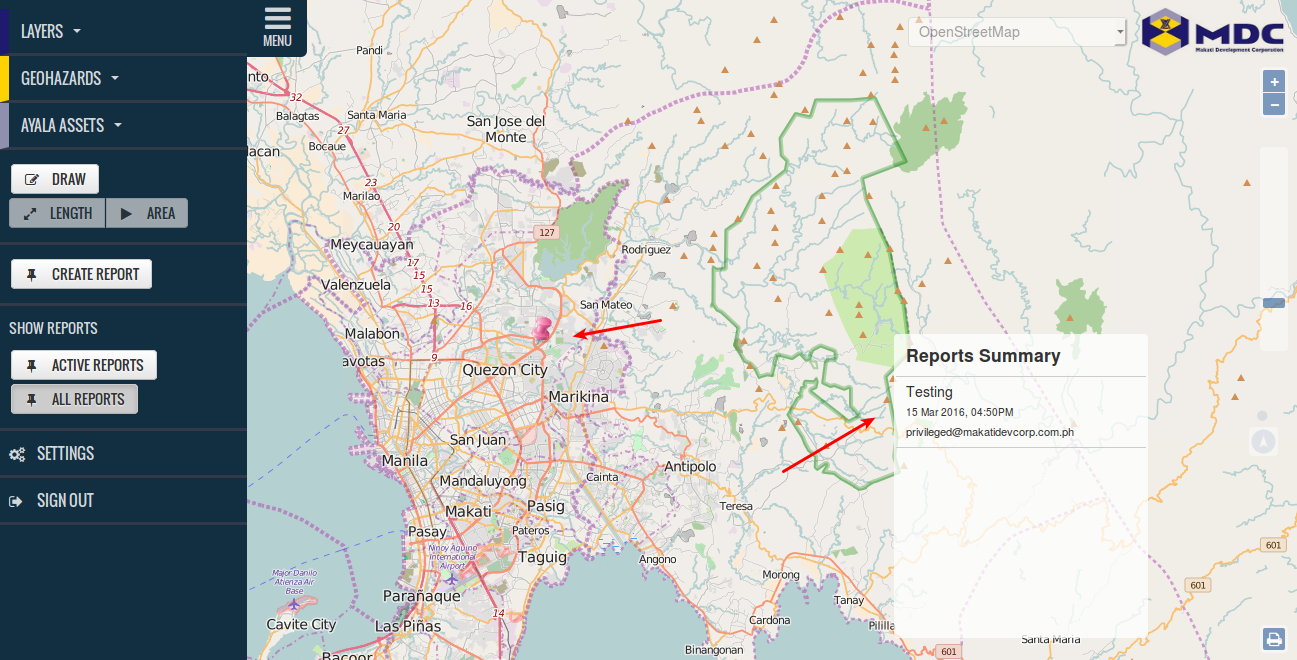
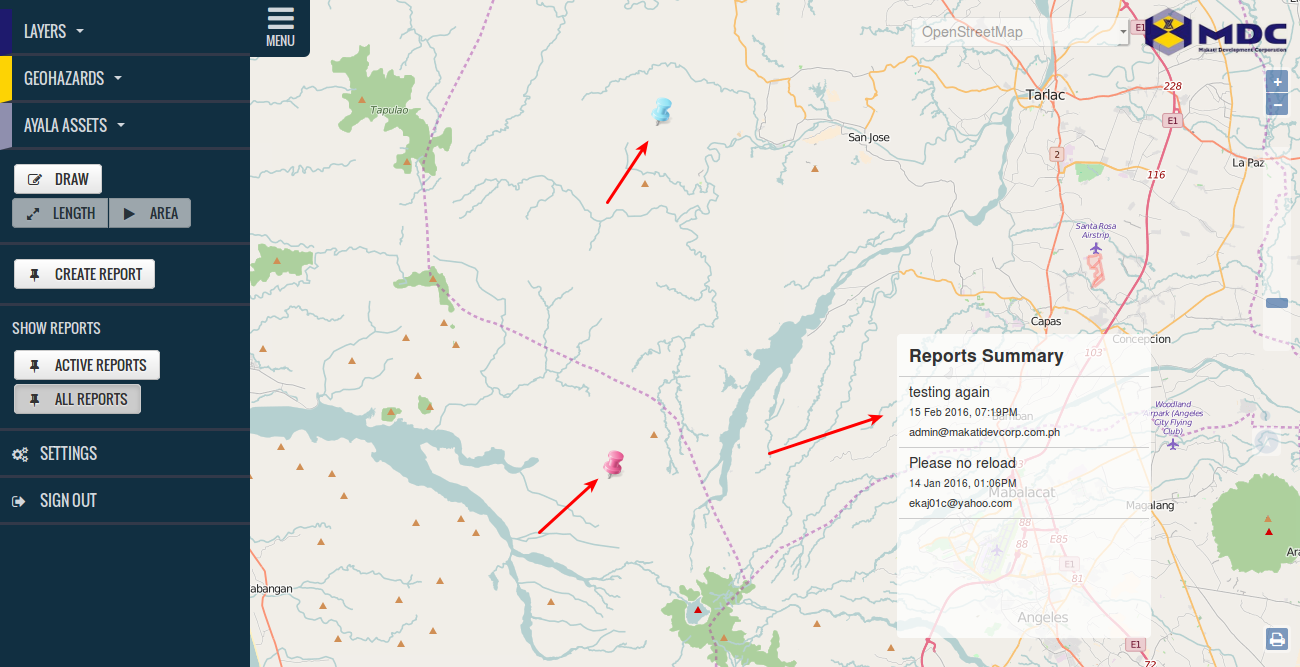
Click ALL REPORTS, You will see all reports reported on the map via Colored Pins and short summary on the lower right corner on the map.
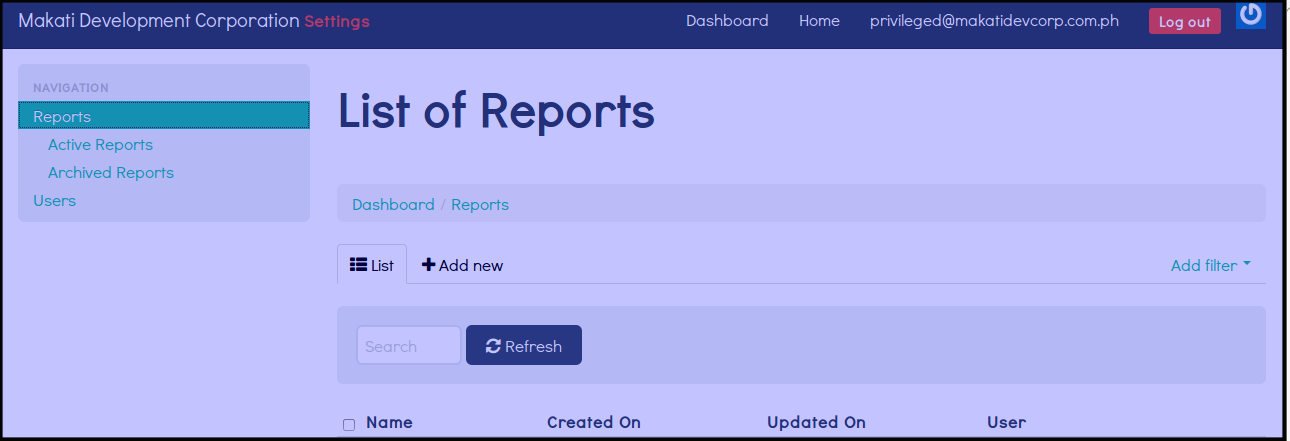
Click Settings => Reports => List of Reports. Here you will see all the reports made on the system.
Note: When you zoom in on the map, the reports that you will see, will only be the reports on the area where you are zooming in on the map.
Here is an example. There is only one report on this area, reason why only one report is showing up.
On the other hand there are 2 reports on the other area, reason why 2 reports are showing up.
View Active Reports
There are 2 ways on how you can view active reports.
Click ACTIVE REPORTS, You will see all reports reported on the map via Colored Pins and short summary on the lower right corner on the map.
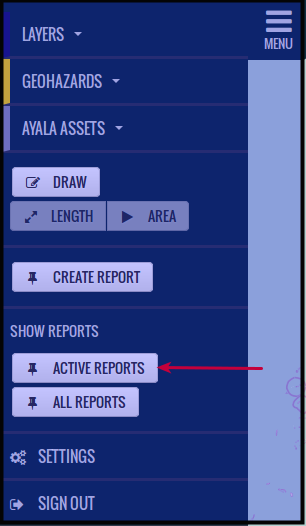
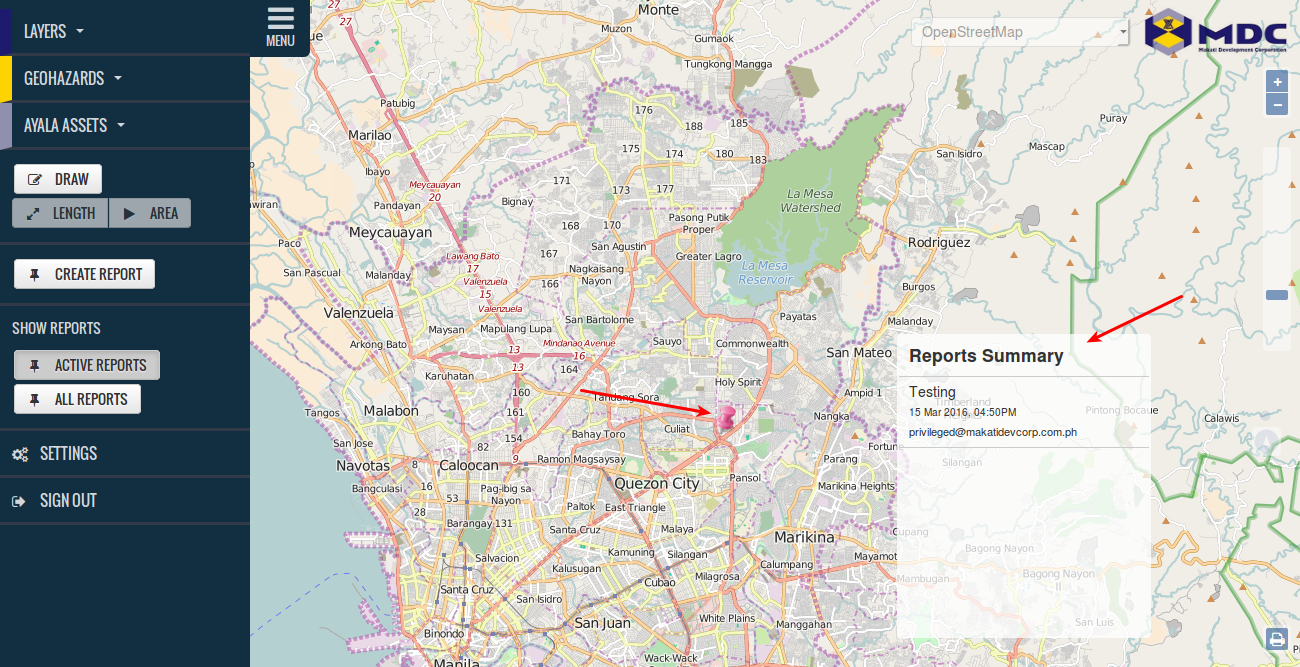
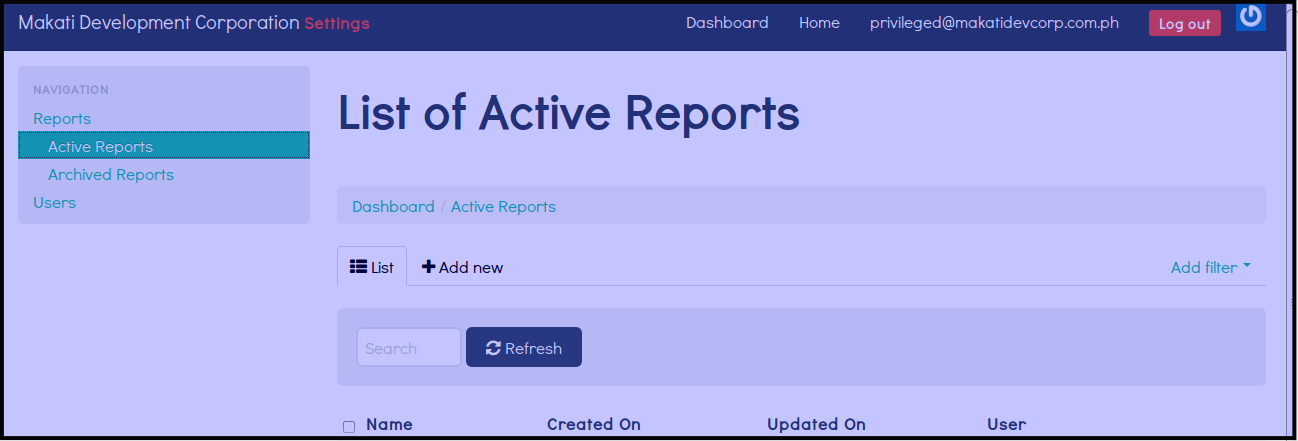
Click Settings => Active Reports => List of Active Reports. Here you will see all active reports existing up to this point of time on the system.
Viewing A Report
There are several ways on how to view a report.
Repeat steps in View All Reports or View Active Reports .
Click Pin of the report you want to see.
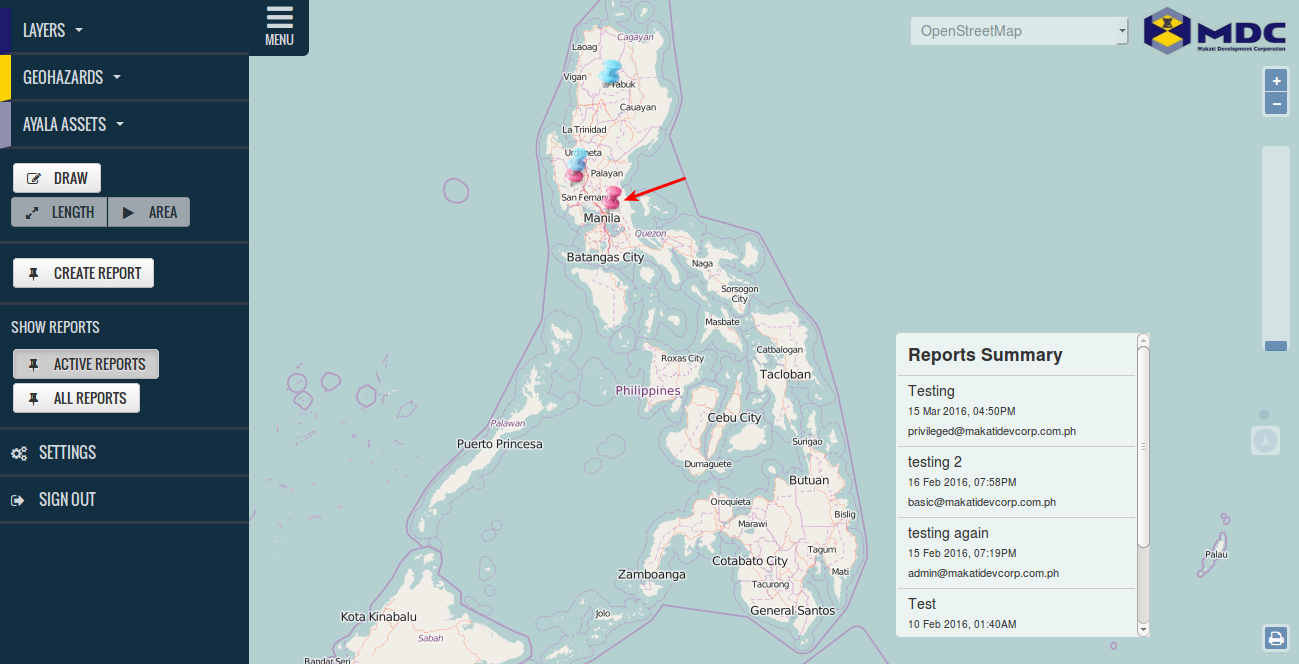
You will see the report
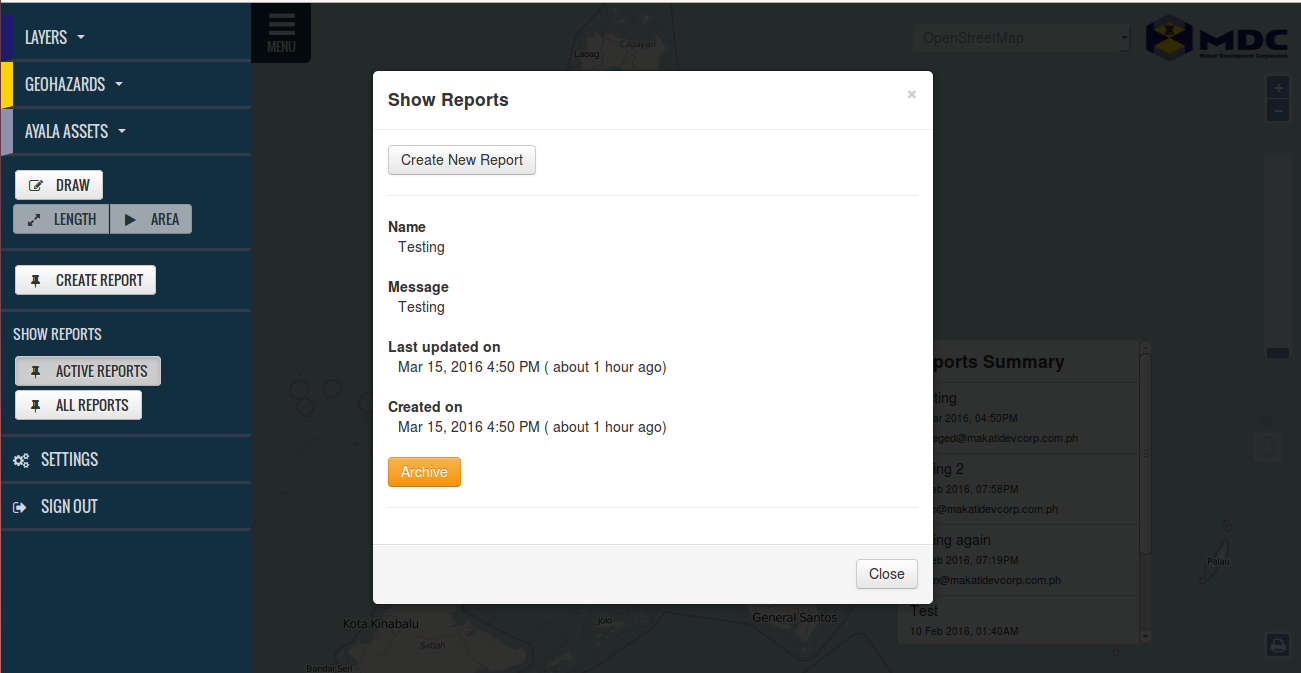
Click Report Title you want to see under Report Summary.
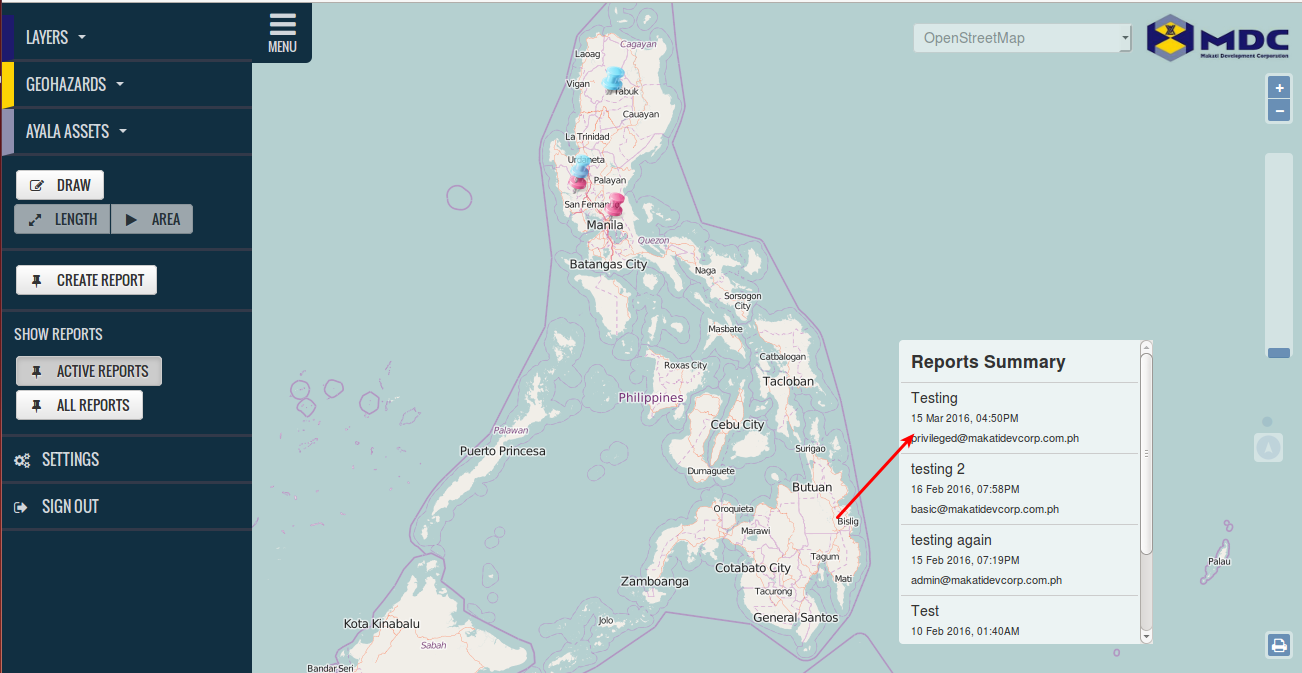
The map will zoom in to where the report is located then repeat step 1.
Click Settings => Reports => List of Reports. Here you will see all the reports made on the system.
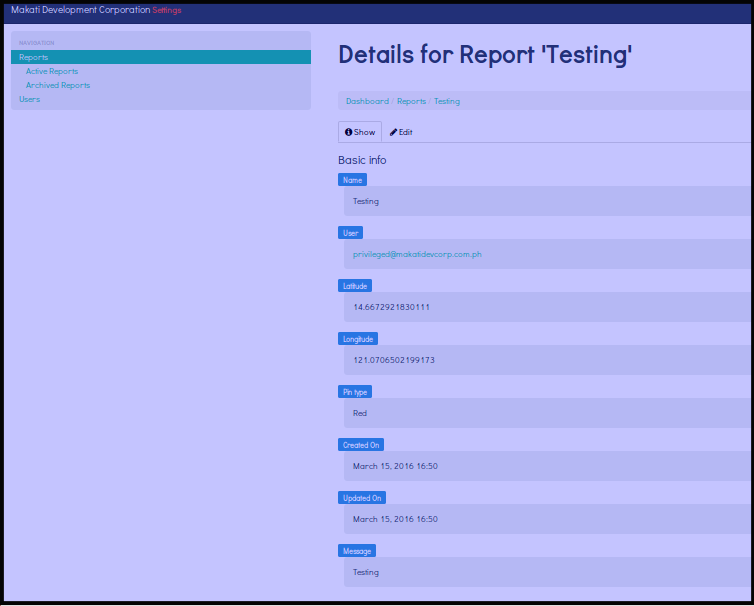
Click check box of the report you want to see then click i icon
You will see the report like this one below.
Viewing Archived Report
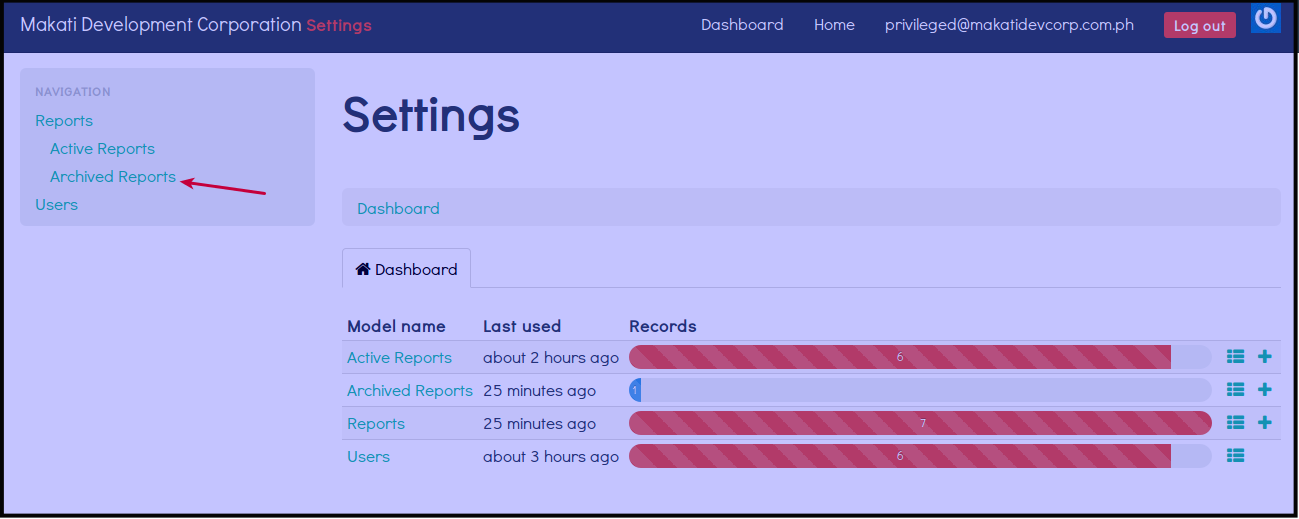
Click Settings
Click Archived Reports
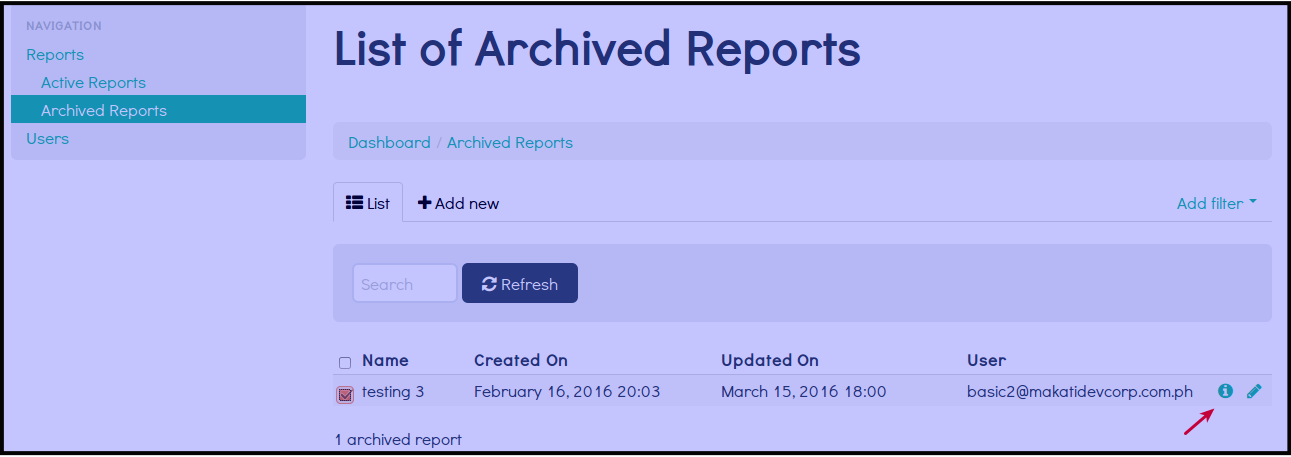
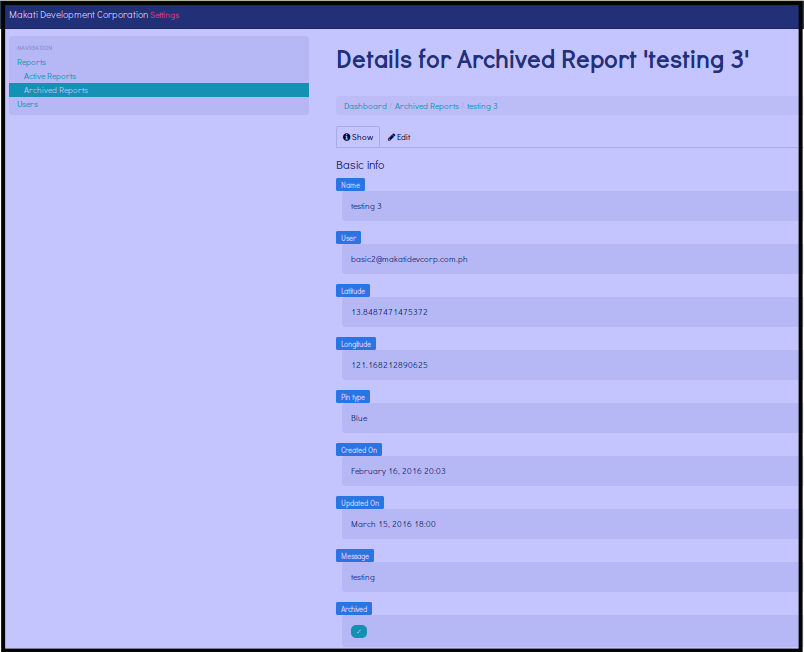
Click check box of the report you want to see then click i icon