Manage Users
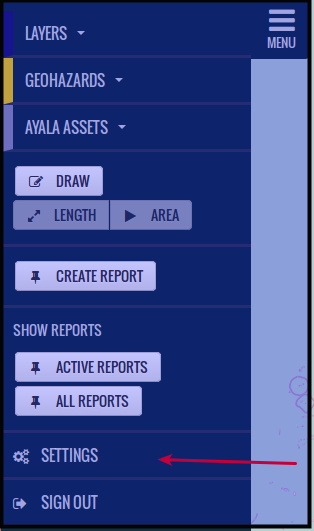
Click Settings
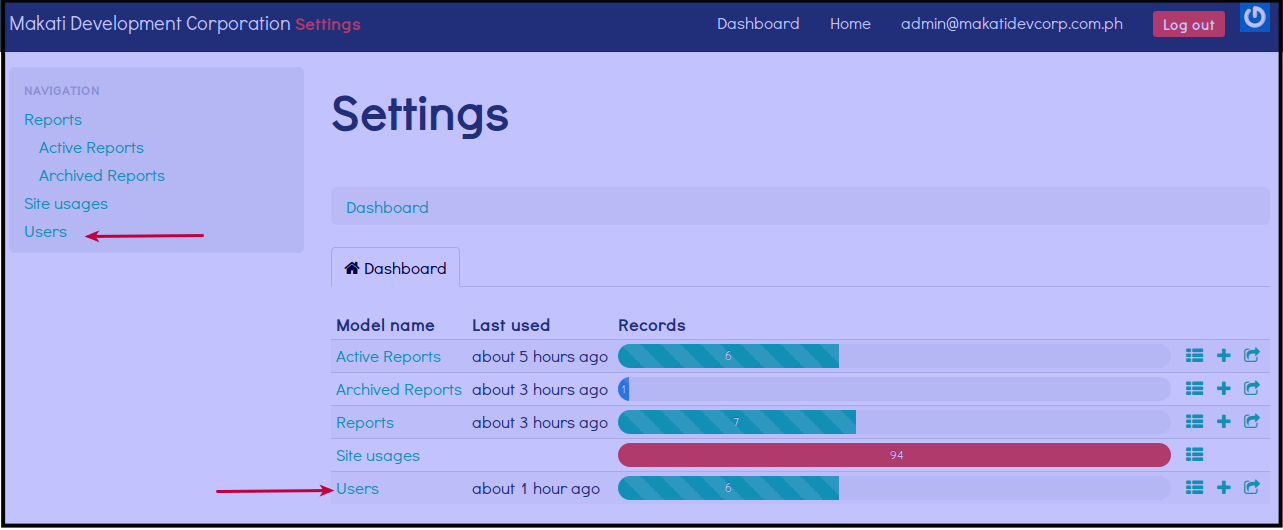
Click Users
You will see List of Users
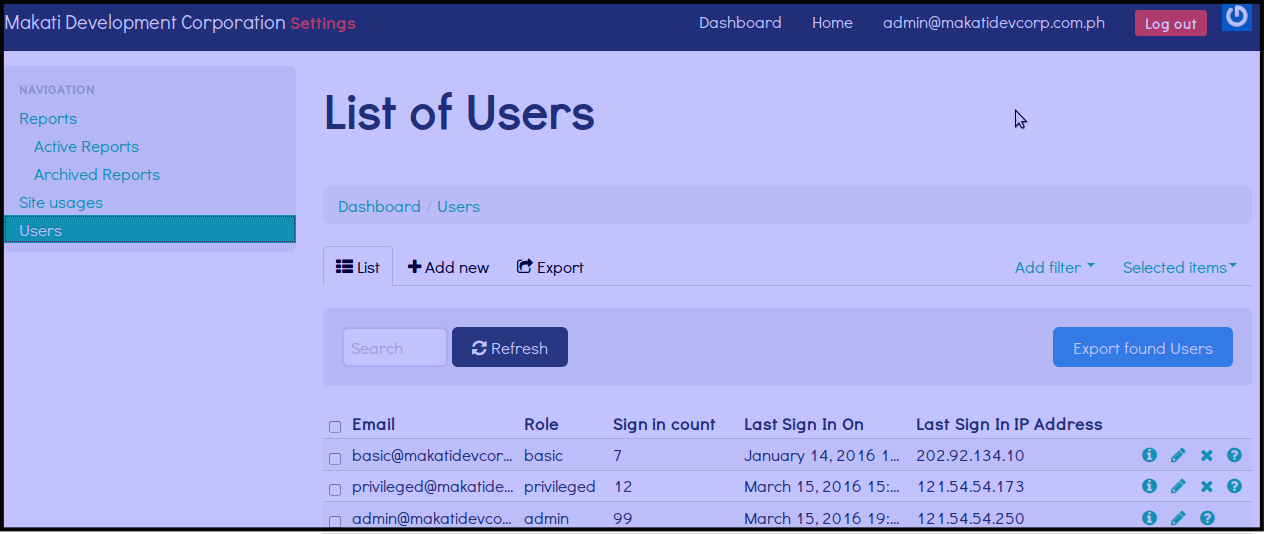
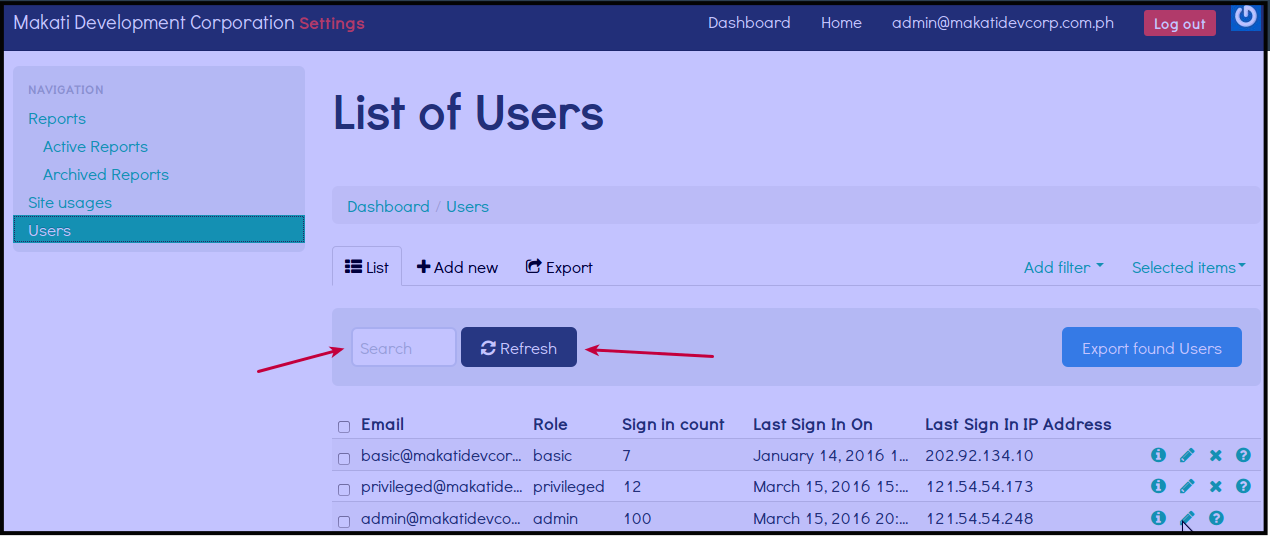
You can search a user via email address or role/access using the search option. Fill out Search box and click Refresh.
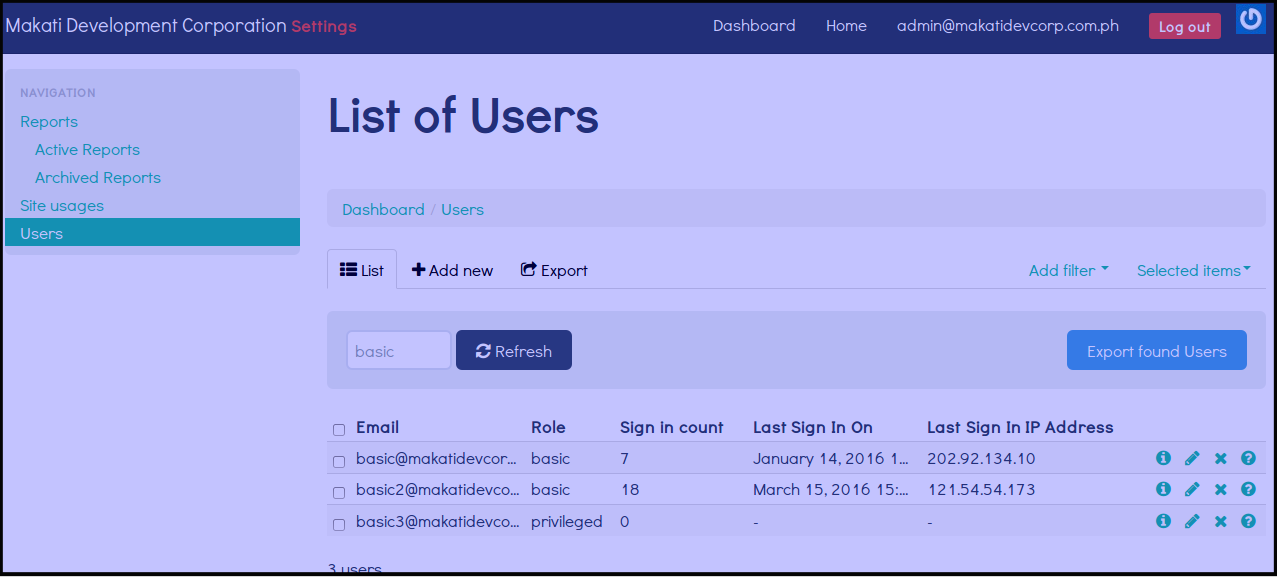
The Search will show the Role/Access or Email related to the keyword entered.
You can opt to add a new user, change roles (Access), delete a user, do password reset for other users and own password reset.
Add a New User
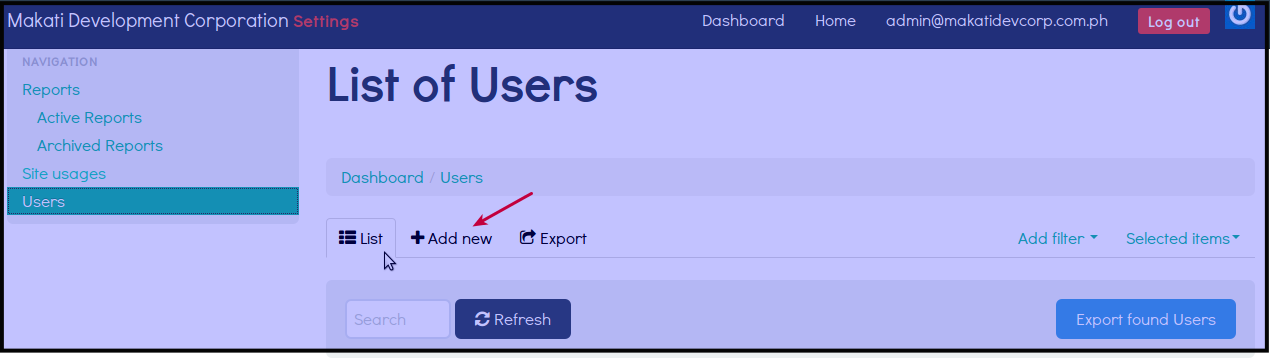
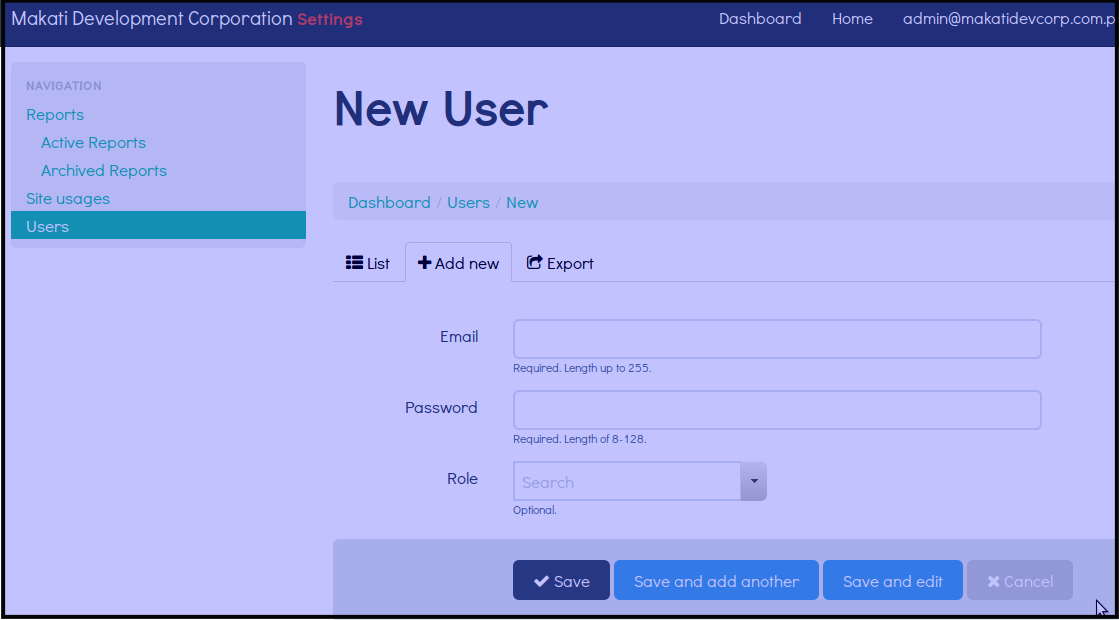
Click Add new tab
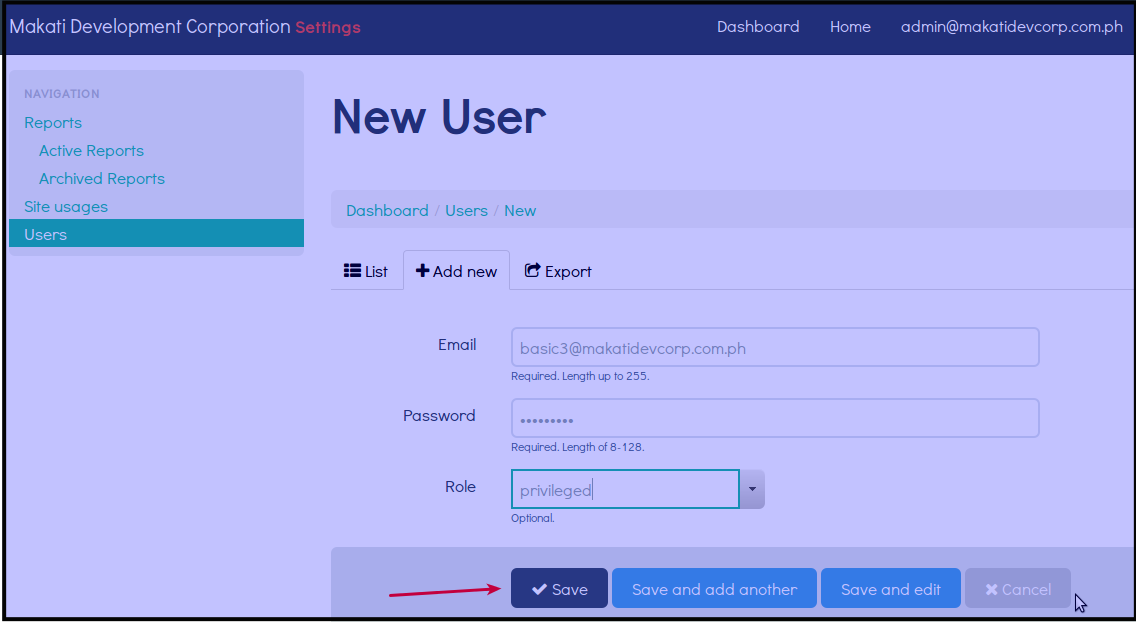
Fill out form, put in unique email address, password and role (Basic or Privileged or Admin).
Click Save, to save the new username and password.
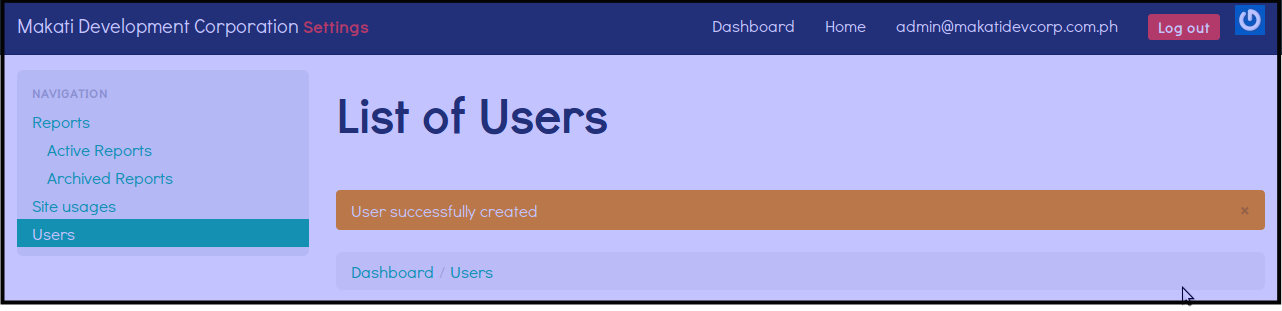
The system will inform you that you have successfully created a new user.
Changing User Role Access
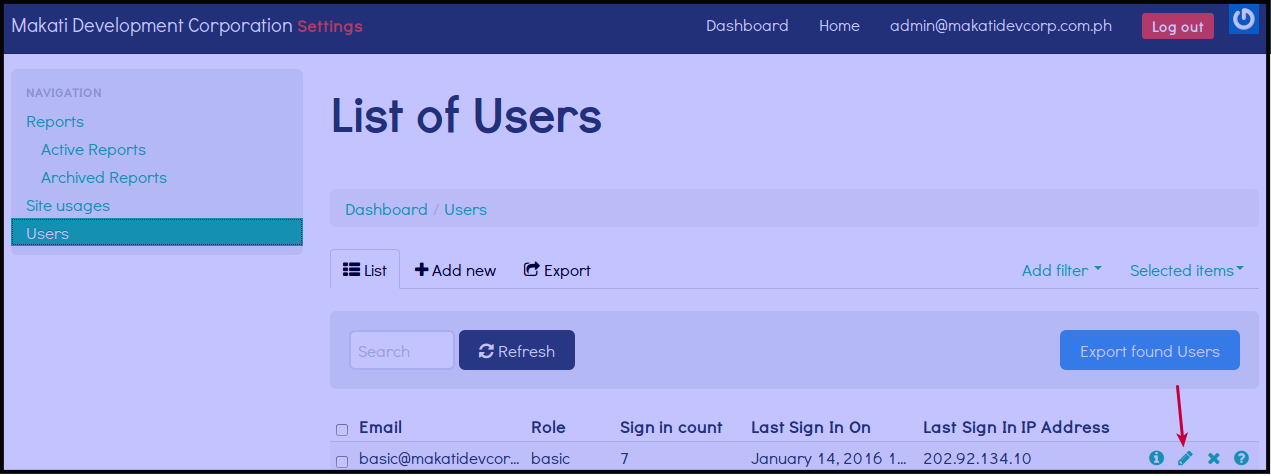
Click Pencil Icon beside the email address of the user you want to change role access.
Click the drop down beside Role to select what role access you want to assign the user. It can be Admin or Privilege or Basic.
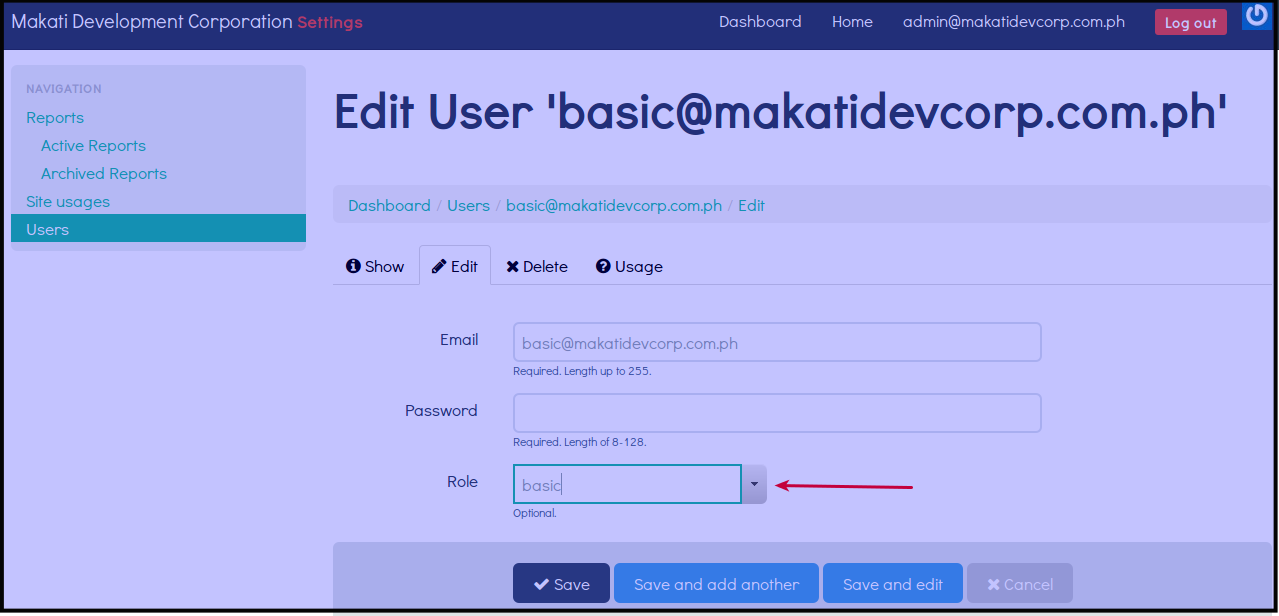
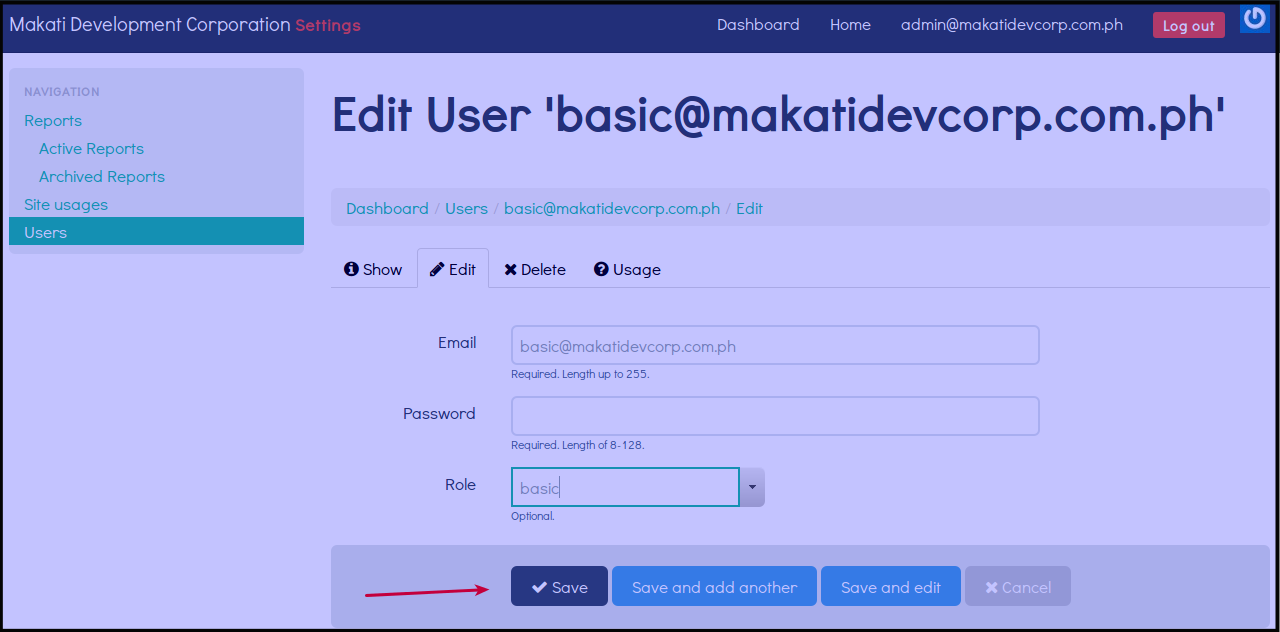
Click Save, to save changes.
Delete A User
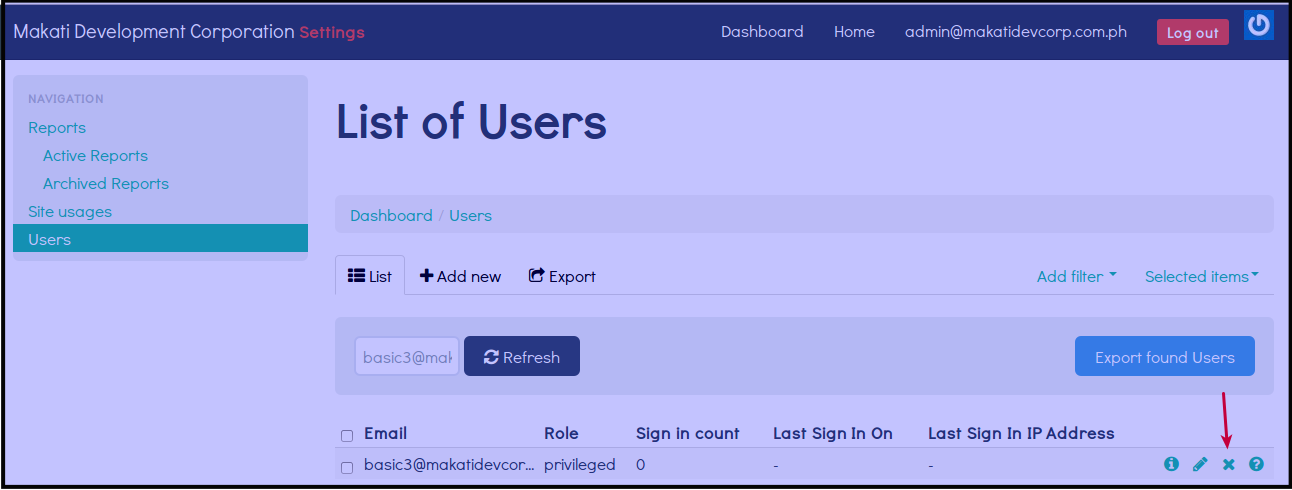
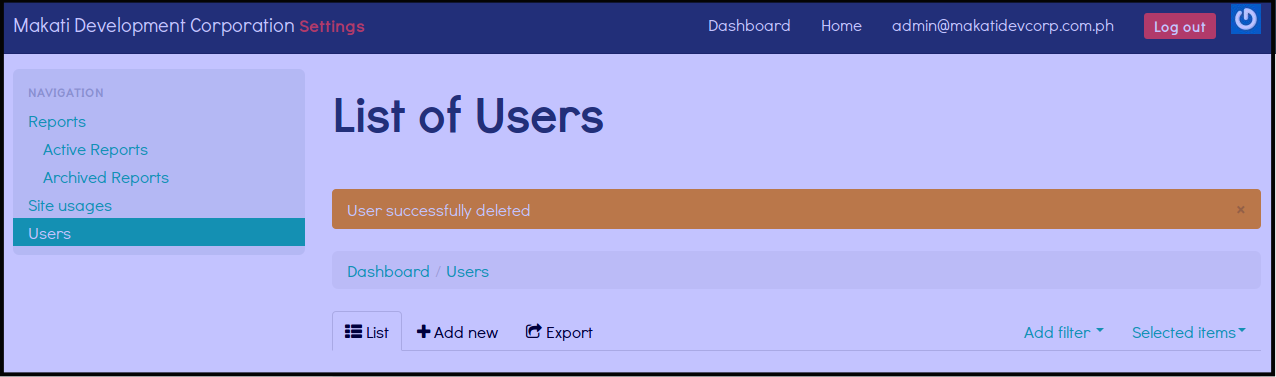
Click X button beside the email address you want to delete.
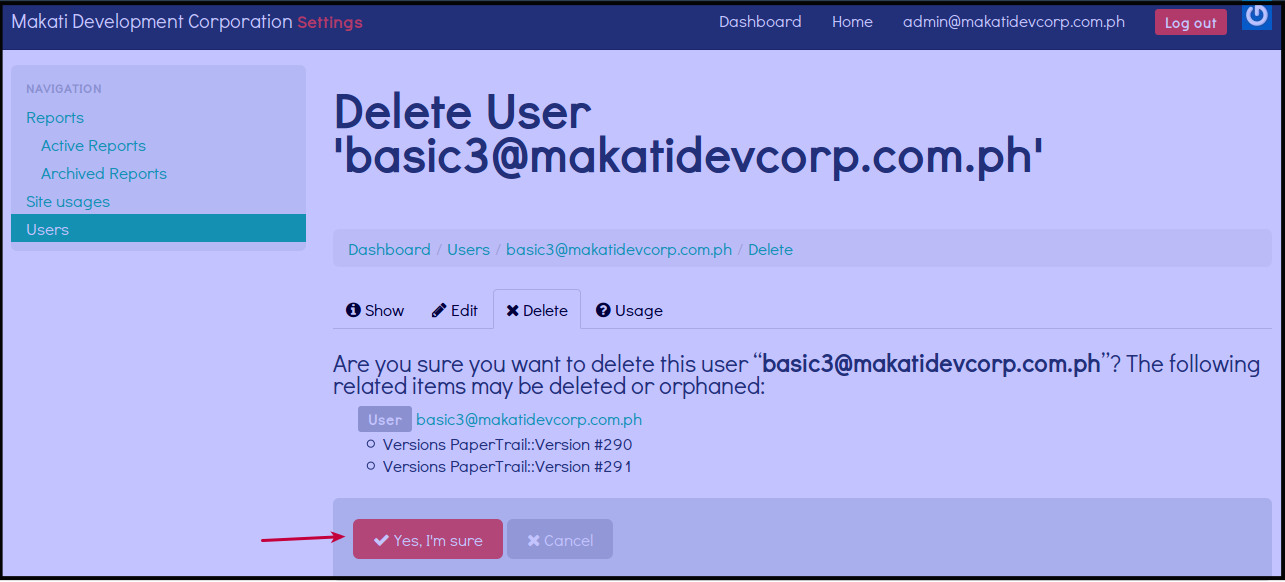
You will go to a page asking you to confirm if you want to delete the email address.
Click Yes, I’m sure to confirm deletion of the user.
Password Reset for Other Users
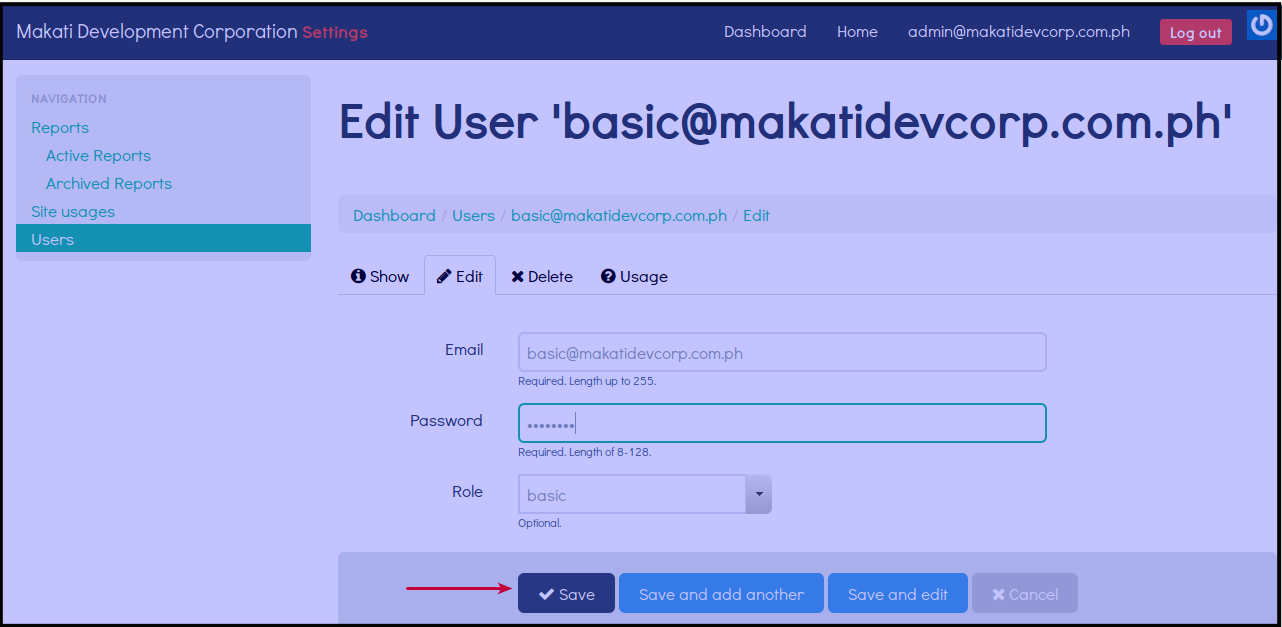
Click Pencil Icon beside the email address of the user you want to change password.
Enter new password inside the box beside password.
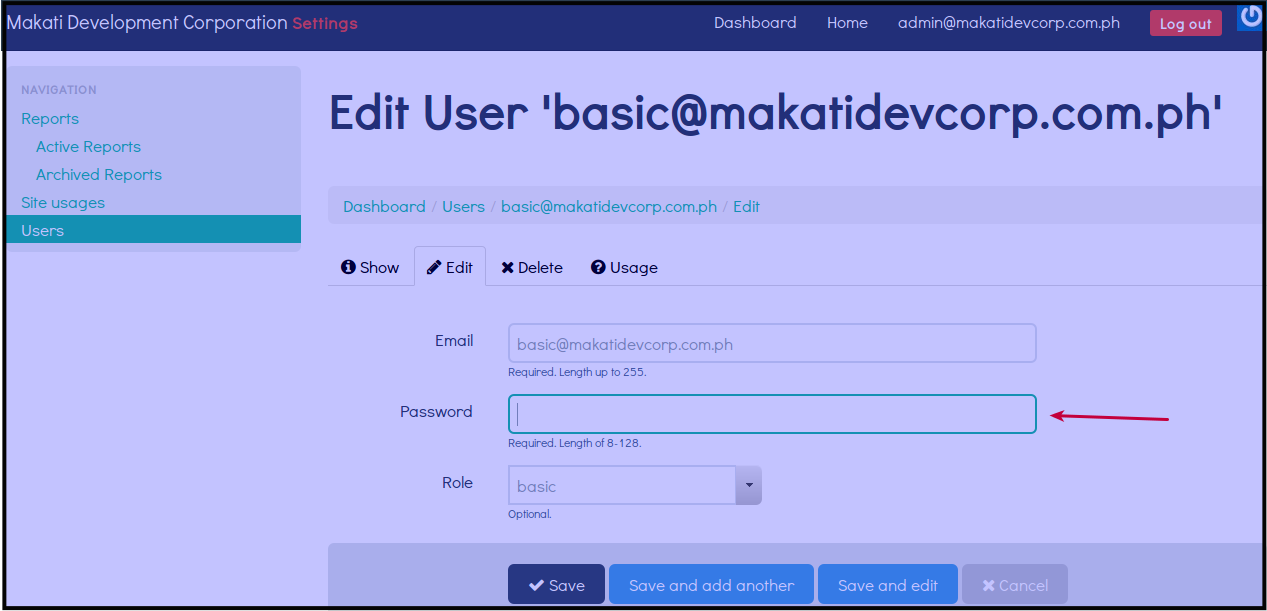
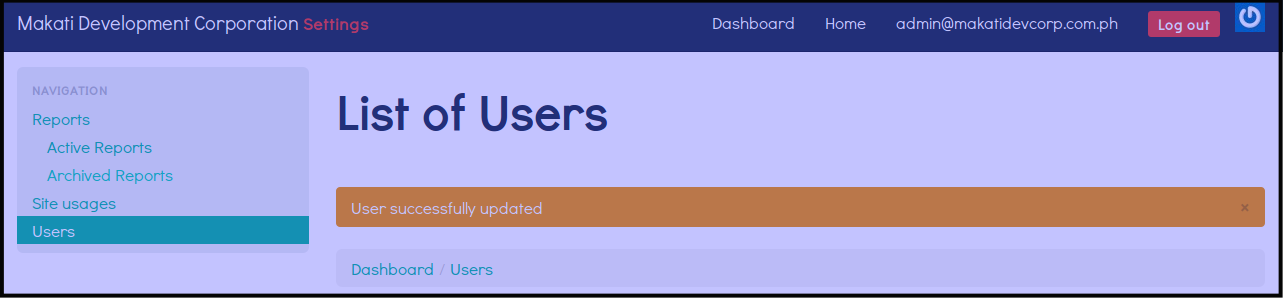
Click Save to save the new password.